
Multi Face Swap: How to Swap Multiple Faces in Group Photos & Videos
Learn how to swap multiple faces at once with the Multi Face Swap tool. This guide covers the "Face Mapping" system for group shots, identity tracking in videos, and how to create custom face-swapped GIFs.
- Home
- / Multi Face Swap: How to Swap Multiple Faces in Group Photos & Videos

Multi Face Swap is the tool for group shots. It allows you to swap multiple different faces within a single image or video.
Best For:
* Family/Group photos.
* Videos with multiple actors.
* GIF memes.
🧠 How "Mapping" Works
Unlike the Quick tool, this tool doesn't just swap "The Face". It finds every face and lets you decide:
* "Face A" becomes "John"
* "Face B" becomes "Mary"
* "Face C" stays original (Unmapped)
🚀 Step-by-Step Tutorial
Step 1: Upload Target
- Upload your group photo, video, or GIF into the Target Media box.
- Wait for it to load fully.

A group photo loaded into the Target Media panel, ready for analysis.
Step 2: Detect Faces
- Click 🔍 Analyse Faces.
- The AI will scan the media and list every person it finds in the Face Mapping card.
Step 3: Assign Identities
You will see a list of rows. Each row is one person found in your image.
- Identify: Look at the thumbnail on the right to see who it is.
- Assign: Click the Source Picker (+) on the left to choose their new face from your gallery.
- Ignore: If you want someone to stay the same, just leave their row empty or click X to remove it.
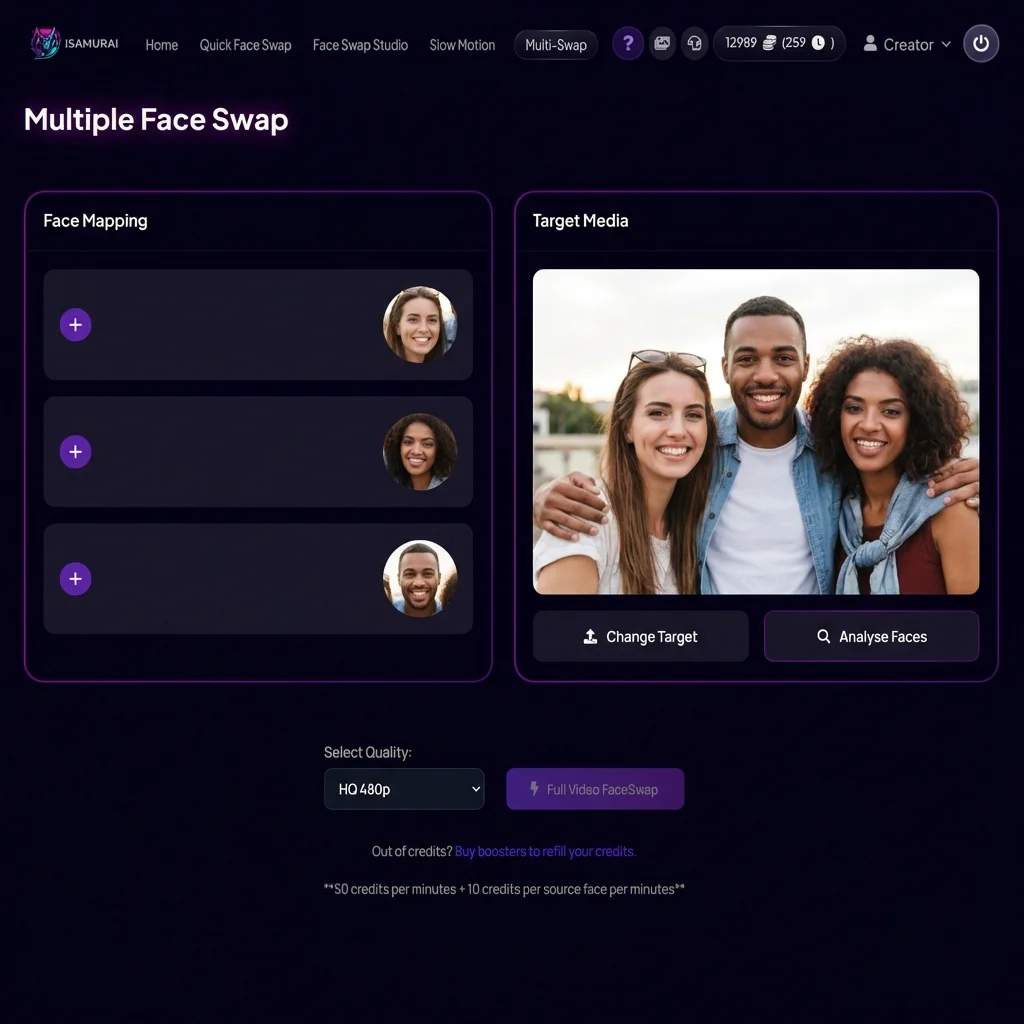
The Face Mapping panel showing detected faces. Click the '+' button to assign a new source face to each person.
Step 4: Preview & Process
- Click 👁️ Preview Swap to generate a test image containing ALL your swaps.
- If it looks correct, click ⚡ Full Video FaceSwap.
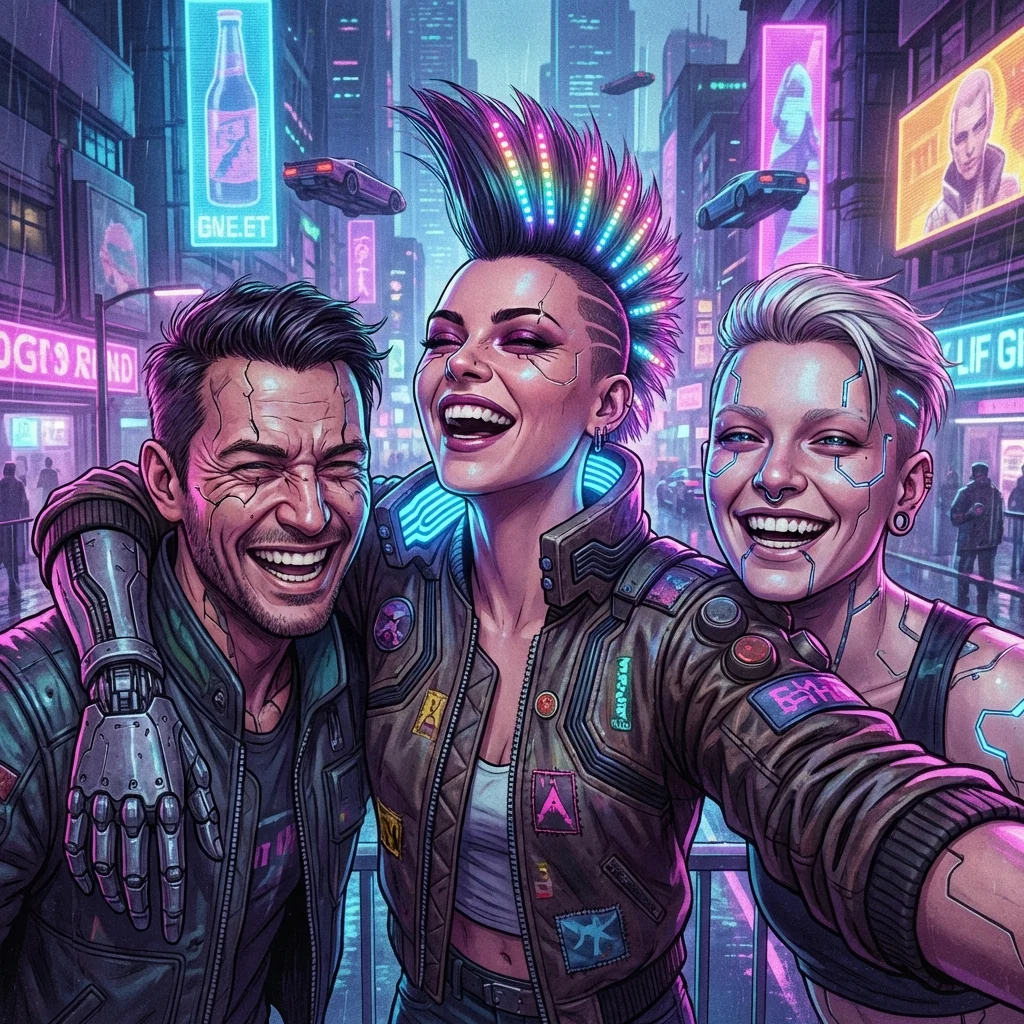
IMPORTANT DISCLAIMER: This image is an artistic illustration created to demonstrate the face swap concept. It was NOT generated by iSamurai.
💡 Special Features
GIF Support
Multi Face Swap is the only tool that supports animated GIFs. You can create custom reaction GIFs by swapping faces while keeping the animation intact.
Identity Tracking
In videos, the AI automatically tracks each person as they move. You only need to map them once, and the system follows them throughout the clip.
Related Articles
How to Use iSamurai API to Create AI Face Swaps and AI Slow Motion: Developer Guide
A complete technical guide on using the iSamurai SDK to programmatically create Face Swaps and Slow Motion videos.

Face Swap + Slow Motion: How to Create Epic AI Videos
Combine two powerful AI effects to create viral cinematic shots. A step-by-step guide to boosting FPS while swapping faces.
Top 5 Face Swap Apps 2026: iSamurai vs Remaker, Reface, Live3D & Canva
We tested the top 5 AI face swap tools. Here is the definitive breakdown of speed, cost, and video capabilities.