
Account & Support: Complete User Guide
This guide covers the essential tools for managing your content, subscription, and getting help.
Table of Contents
🖼️ The Gallery
Your central hub for all media.
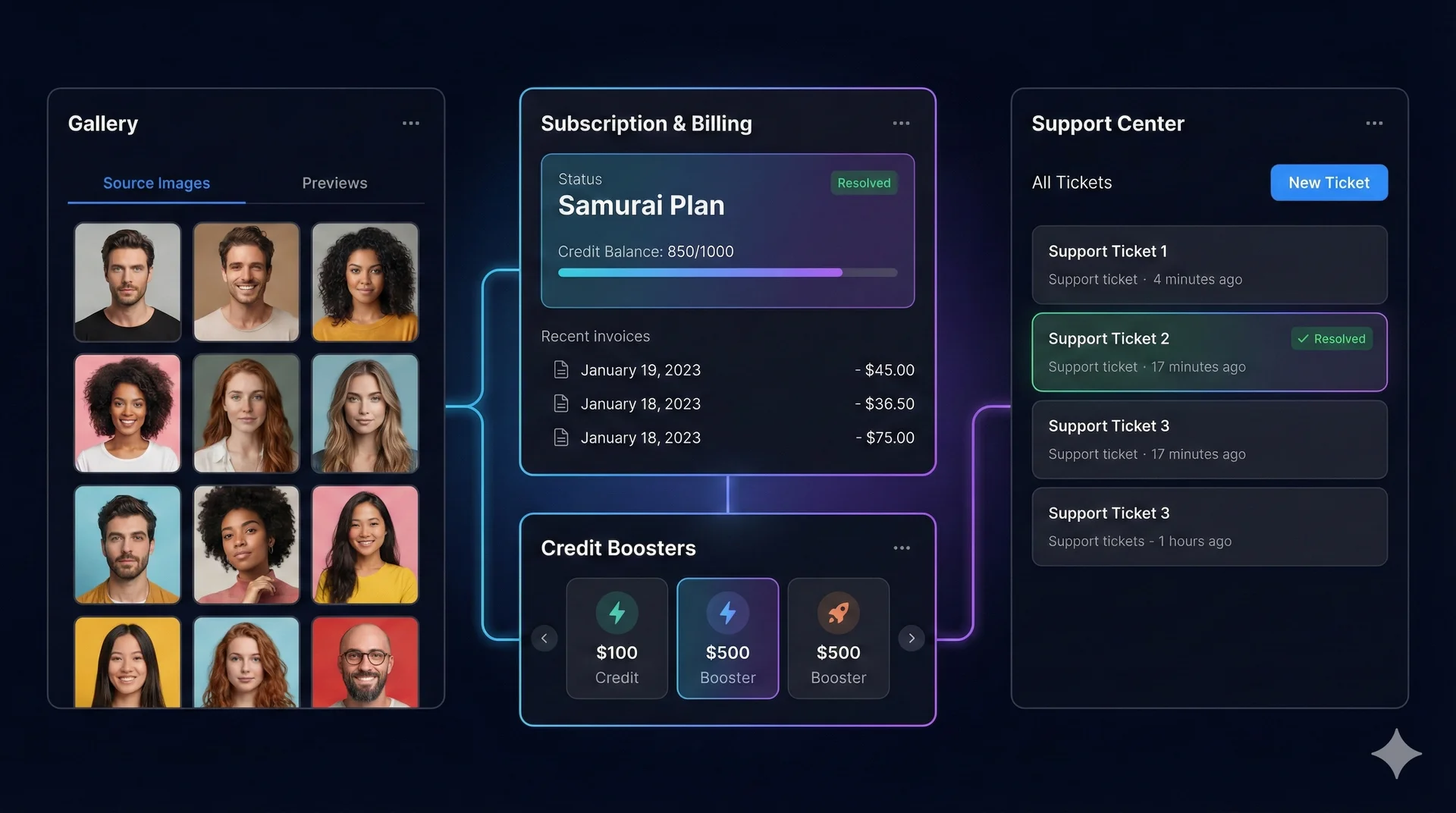
Source Images Tab
- Purpose: Manage the faces you use for swapping.
- Upload: Add new faces here so they appear in the Face Swap tools.
- Edit: Click the Edit (Pencil) icon to crop, rotate, or sharpen an image before using it.
- Delete: Remove old images to keep your library clean.
Previews Tab
- Purpose: See a history of all the “Test Swaps” and “Previews” you’ve generated.
- Filter: View only Face Swap, Multi-Swap, or Studio previews.
👤 Profile & Subscription
Manage your plan and usage.
Subscription Dashboard
- Current Plan: View your active status (e.g., “Samurai”).
- Billing: See your next billing date.
- Cancel: You can cancel your subscription at any time via the “Cancel Subscription” button. You will retain access until the end of the current period.
Purchase History
A list of all your invoices and credit pack purchases for your records.
💎 Upgrading
On the Subscription Page, you can browse plans using the interactive card view.
* Swipe/Drag: Move the cards left or right to see different tiers (Kohai, Ninja, Ronin, Samurai).
* Boosters: Scroll down to buy one-time “Credit Boosters” if you run out of credits mid-month.
🆘 Support Center
If you encounter issues, use the integrated Support Center instead of email for faster response.
Creating a Ticket
- Click New Ticket.
- Type: Select “Bug Report”, “Billing”, “Feature Request”, etc.
- Description: Explain your issue clearly. You can start a chat thread with our team.
Ticket Status
- Open: We’ve received it.
- In Progress: We’re working on it.
- Awaiting User: We replied and need more info from you.
- Resolved: The issue is fixed.
Attachments
You can send images or files directly inside the ticket chat to show us exactly what went wrong.
Related Tutorials & Features
- Start swapping faces: Try iSamurai Face Swap
- View our transparent credit system: Check our Pricing