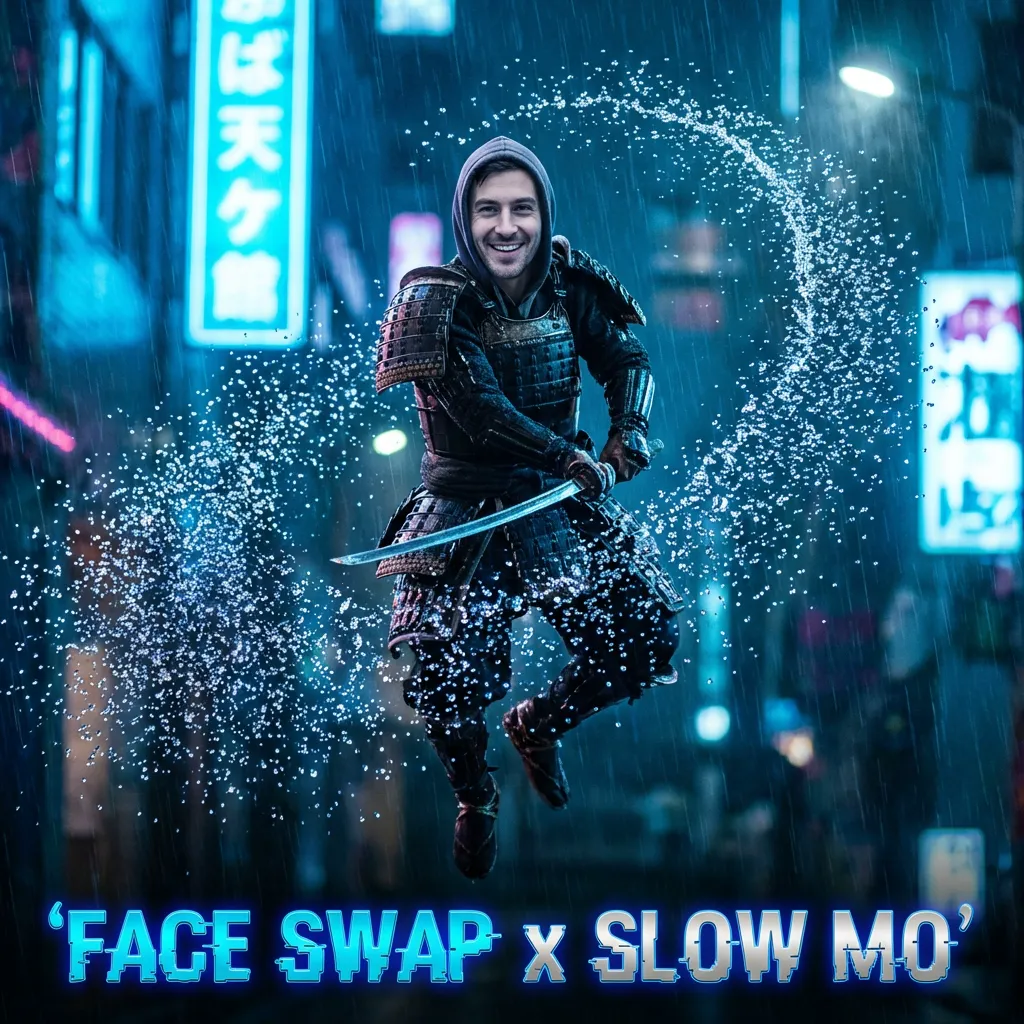
Why Combine Face Swap with Slow Motion?
Most AI face swaps look “jittery” because they stick to the original low frame rate (30fps) of the source video.
To make a face swap look truly cinematic and expensive, you need smooth motion.
The Secret Formulation:
High Accuracy Face Swap + AI Frame Generation (Slow Mo) = Viral Quality
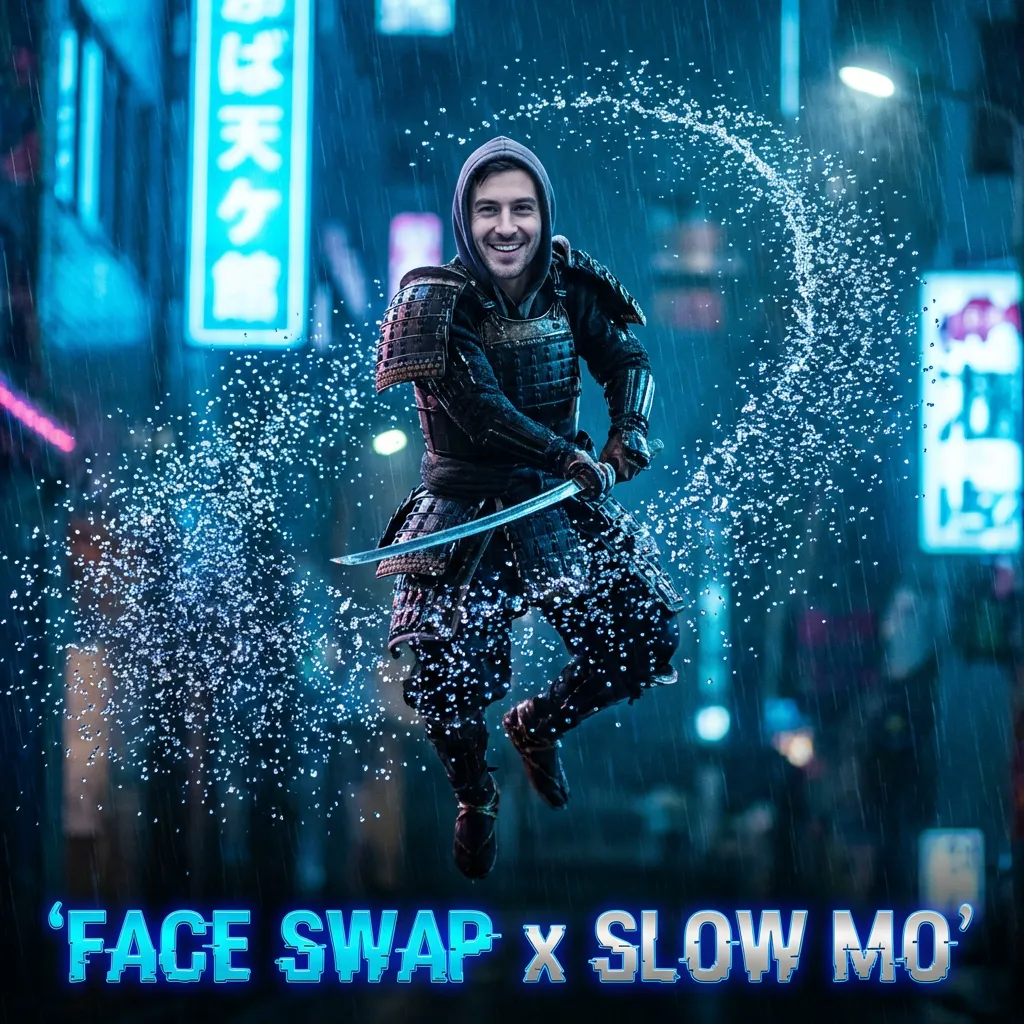
Step-by-Step Workflow
Here is how to achieve the “Matrix Effect” using iSamurai.
Step 1: Perform the Face Swap
Upload your source video. If it is a fast-action clip (like a dance or sports move), use Pro Mode to ensure the face stays locked on during rapid movement.
Step 2: Apply AI Slow Motion
Once your face swap is done, don’t download it yet.
Click “Add Slow Mo”.
Our engine will use Frame Interpolation to generate new frames between the existing ones.
* 2x Slow Mo: Smooths out jitter.
* 4x Slow Mo: Creates a dreamy, cinematic look.
* 8x Slow Mo: Freezes time for epic details.
Pro Tip: Want to understand how AI “hallucinates” new frames? Read our deep dive on AI Slow Motion Technology (Core Tutorial).
Step 3: Enhance Detail (Optional)
If your slow-motion result reveals blurry textures, use the Enhancer to upscale the resolution to 4K.
Why iSamurai is Unique
Most tools force you to use two different apps:
1. App A for Face Swap.
2. App B (like Topaz) for Slow Mo.
iSamurai does both in the cloud. You don’t need a $3,000 PC to render heavy AI slow motion. We run it on our H100 GPU clusters.
The Results
- Before: A standard 30fps phone clip.
- After: A silky smooth 120fps masterpiece with a brand new face.