
Character swap
The dancer becomes a ninja hero: the same moves, the same timing, the same camera.
ReImagine is the AI video editor that keeps your shot. Put a new character in place of a person, swap a head, change the scene, the outfit or the weather. The motion, the camera and the sound stay exactly as they were.
Online, in your browser · On the paid plans · The price shows before you start
One picture of the new character. Every move stays where it was.
The dancer becomes a ninja hero: the same moves, the same timing, the same camera.
A person, a cartoon, a mascot or an anime hero. A character sheet or a few angles give the closest match.
Point at the person to replace. The rest of the shot, the other people and the room are kept frame for frame.
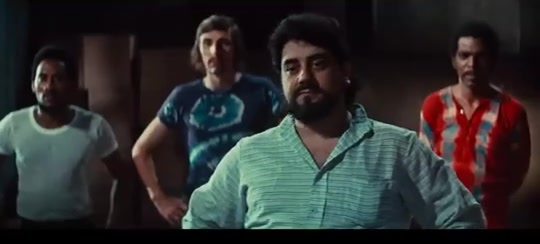
The scene as it was filmed.
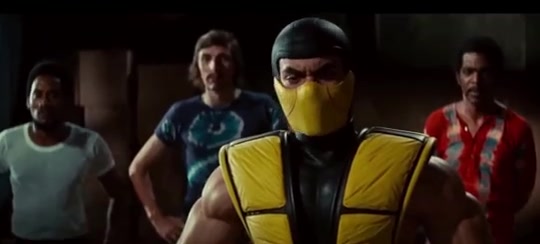
The man in front is now a masked fighter. The three behind him did not change.
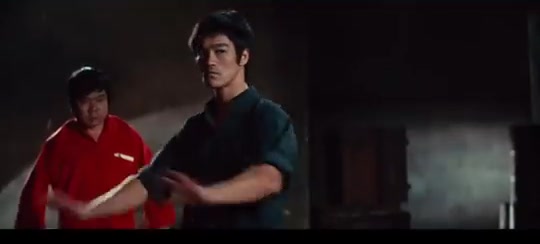
A fighter mid-move.
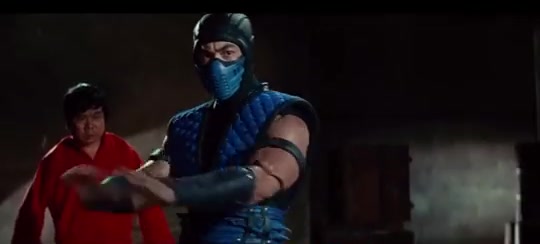
Same move, same light, a new character.
Each one keeps the original video as it was: every move, the camera, the timing and the sound. Only what you ask for changes. For photos, Head Swap and Character Swap are in Imagine.
Put someone else in the scene: a person, a cartoon, a mascot. They do exactly what the original did, at the same moment. The place, the other people and the sound stay. Choose Character swap as the mode of the part. Character swap →
Replace just the head, face and hair, and keep the body, the clothes and the scene. Edit one frame with the built-in image editor and the video follows it. Head swap →
Day into night, summer into snow, a new outfit, a new colour, an object added or gone. Everything you did not touch stays frame for frame. Choose Edit video and say what changes in a few words.
For each part of the video, use the way that fits the change.
Pick any moment and choose Edit this frame. Change it in the image editor: at that frame the video looks exactly like your edit, and the change carries through the part.
Add up to 4 pictures and 2 short clips (1 to 4.5 seconds) of how someone or something should look, and say what changes in a few words.
Pin key moments with edited frames and add references for the look. The closest result for the hardest changes.
Any video. Edit up to 10 seconds, 30 seconds, 1 minute or 2 minutes of it at a time, depending on your plan.
The video is cut into parts of 2 to 10 seconds; cut where you want. For each part: a picture, a clip, a few words or an edited frame.
One part to try, or all of them. The video comes back whole, with its sound. Watch it, compare with the original, download it.
Every edited frame becomes a keyframe. Edit it again at any time, or replace it with a photo from your gallery.
Edit builds on the last result, Regenerate makes a new one. Every result of a part stays, and you choose the one the video uses.
Turn it on and AI looks at your video, pictures and clips, then writes the detailed description for you. Best for big changes and busy scenes.
Standard or HD output. HD comes with the Ronin and Samurai plans.
Credits come with every paid plan. The exact price shows before you press Process.
| Plan | Kohai | Ninja | Ronin | Samurai |
|---|---|---|---|---|
| Longest part edited at once | 10 s | 30 s | 1 min | 2 min |
| HD output | — | — | ✓ | ✓ |
| Upload size | 200 MB | 200 MB | 500 MB | 1 GB |
| Credits each month | 150 | 600 | 1,500 | 4,000 |
A reference clip adds 20 credits (30 in HD). Joining all the parts into the final video adds 2 credits per part. ReImagine renders on the paid plans; see every plan on the pricing page.
You upload a video and say what to change, with a picture, a short clip or a few words. ReImagine repaints the video with that change and keeps everything else: the motion, the camera, the timing and the sound.
Who is in it, a head, an outfit, the place, the weather, the time of day, an object. Anything you can show in a picture or say in a few words.
Yes. Every move, the camera and the timing come from your video, and its sound comes back with the result.
Upload the video, pick the part, add one picture of the new character and press Process. A character sheet or pictures from other angles give a closer match. Only the person you point at changes.
Yes. Open a frame with Edit this frame and use Head Swap in the built-in image editor. The video follows that keyframe: the face and hair change, the body, the clothes and the scene stay.
You edit up to 10 seconds at a time on Kohai, 30 seconds on Ninja, 1 minute on Ronin and 2 minutes on Samurai. The video is cut into parts of 2 to 10 seconds, and you can cut where you want.
6 credits per second of video in Standard and 10 in HD. A reference clip adds 20 credits (30 in HD), and joining all the parts adds 2 credits per part. The exact price shows before you start.
Yes. Pick any frame and choose Edit this frame: the image editor opens with it. The edited frame becomes a keyframe, and at that moment the video looks exactly like your edit.
Yes, as often as you like. Edit builds on the last result and Regenerate makes a new one. Every result is kept as a version, so you choose the one the video uses.
ReImagine renders on the paid plans, from Kohai. On the free plan you can still make pictures in Imagine and 1-second tests in VideoGenJutsu.
Yes. ReImagine runs in the browser on a phone, a tablet or a computer. There is nothing to install.
Yes — read how to edit a video with AI: what you can change, the four ways to show the change, tips and prices.
Upload a clip, show the change, press Process. The motion and the sound stay yours.