What motion transfer AI actually is
You can now animate an image with AI by borrowing movement from a real video: take one still picture of a character, pick a clip of someone dancing, walking or fighting, and the character in your picture performs that exact routine. That’s motion transfer — the motion comes from the video, the identity comes from your image, and the output is a new video of your character moving like the performer.
It’s the answer to a very old creative problem: drawings, game characters, mascots and photos don’t move, and traditional animation is measured in weeks. With motion transfer you make a picture dance in minutes — no rigging, no keyframes, no mocap suit. You supply two things (a still character and a motion clip) and the tool does the rest, keeping your character’s look, outfit and proportions while it copies the choreography frame by frame.
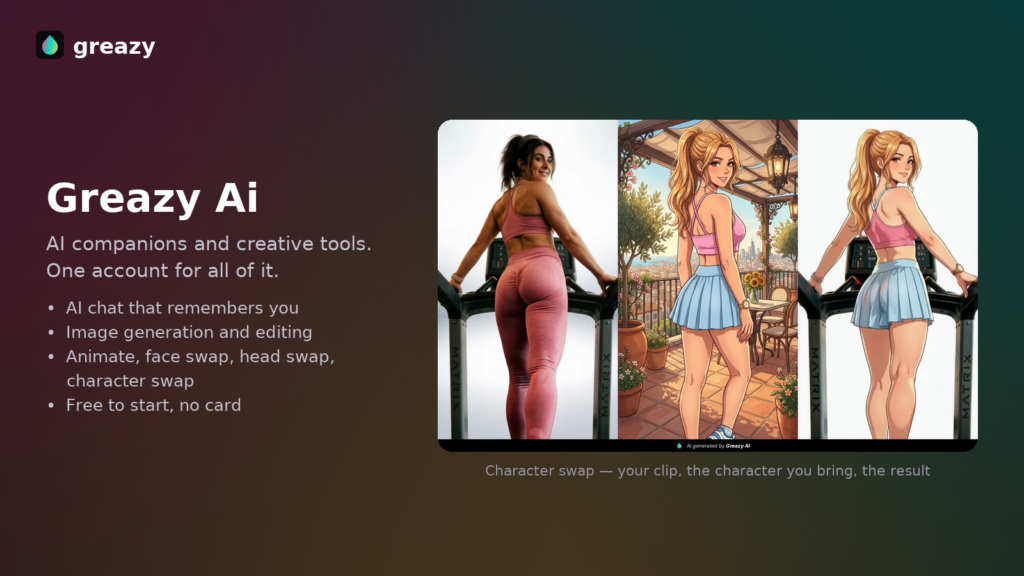
It’s the mirror image of character swap: a character swap puts a new character into the original video’s scene, while animate keeps your character’s own scene from the still image and gives it the video’s motion. Same family as head swap and face swap, but instead of editing footage, you’re bringing a character to life.
A note on what “keeps its own scene” means in practice: the world around your character comes from your image, not from the motion clip. If your character stands in a hand-drawn forest, the animation happens in that forest; the dance video’s living room never appears. That’s why this works so well for illustrated characters — the art style, palette and setting you created stay intact, and only the movement is new.
How to animate a character, step by step
Here’s the full workflow in iSamurai’s Animate — from a still picture to a finished clip:
- Upload the motion video. This is the clip whose movement you want to steal — a dance trend, a walk cycle, a workout move, a fight scene. One clearly visible performer works best.
- Pick the performer. The tool detects the people in the clip and shows them on a frame; click the one whose motion should drive your character.
- Upload your character image. One still picture of the character to animate — an illustration, a game render, a mascot, a photo of a person. The more of the body visible, the better the result.
- Optionally match the pose. Use pose matching to line your character up on the exact video frame — scrub to a frame, then move and scale your image over the performer so the starting positions agree.
- Run a frame preview. For 2 credits you render one finished frame of your character mid-performance — a cheap test of identity, style and pose before any full render.
- Generate. When a preview convinces you, reuse its seed and render the full clip. Your character performs the whole routine, and the video lands in your gallery ready to share.
Choosing the right motion video
The motion clip decides most of the final quality, because whatever it contains gets copied faithfully — the good and the bad. The ideal driving video has one person, fully visible, on a steady camera. Dance videos shot for social media are close to perfect: front-facing, full body in frame, expressive movement. Things to avoid: performers who walk off screen or get blocked by objects, very fast cuts, extreme motion blur, and clips where the camera moves more than the person. If you both want to animate a character and keep a scene from real footage, run the motion through Animate first, then finish your edit as usual — the same account also covers our video face swap workflow if you need identity edits on filmed clips.
Pose matching: line your character up on the frame
A still image and a video almost never start in the same pose: your character stands in a neutral A-pose, the dancer starts crouched with arms crossed. Left alone, the tool bridges that gap with a guess — and guesses cost quality, especially in the first seconds of the animation.
Pose matching lets you close the gap yourself. Scrub through the motion video’s timeline, stop on the frame you want to anchor to, and position your character image directly over the performer — move, scale and rotate until the bodies roughly align. That one alignment tells the tool exactly how your character maps onto the performer, which pays off in steadier proportions and a cleaner start. It’s optional for simple front-facing motion, and strongly recommended for everything else.
Frame preview: a 2-credit reality check
Before you render a full clip, spend 2 credits on a frame preview: one finished frame of your character caught mid-motion, rendered exactly as the final video will be. It answers the important questions immediately — does the character still look like your image? Did the outfit and style survive? Does the pose read naturally? If not, try a different character image or adjust the pose match and preview again; at 2 credits per attempt, iterating is cheap. Once a preview looks right, reuse its seed for the full render — the seed makes the result reproducible, so the finished animation matches the frame you approved instead of re-rolling the look.
Quality tips for lifelike animation
- Full body in the character image. If the image cuts off at the waist, the tool has to invent legs. Give it the whole character.
- Clean silhouette, simple background. A character that clearly separates from its background animates more faithfully than one buried in clutter.
- Match the framing. A full-body motion video pairs best with a full-body character image; a waist-up clip pairs with a waist-up character.
- Consistent style beats high detail. A clean, coherent illustration animates better than an ornate one with dozens of tiny accessories that flicker in motion.
- Preview at the extremes. Preview a frame from the most intense moment of the motion — if the character holds together there, the easy parts will be fine.
- Use multi-reference for a persistent character. Several images of the same character from different angles (Samurai plan) keep identity locked as they turn and move.
What people animate
Artists and illustrators bring original characters to life — an OC performing a trending dance is some of the most shareable content a character artist can post. Faceless creators animate a virtual persona instead of filming themselves, then keep that persona consistent across every video. Brands make mascots move for ads and socials without commissioning animation. Game developers preview how a character design moves before any rigging exists. Families make kids’ drawings dance — reliably the biggest smile-per-credit ratio on the platform. And meme-makers make literally any picture dance, which needs no further justification.
Length limits, plans and credits
Animation length follows your plan’s video cap: a free account runs a 1-second test — enough to see your character actually move; Kohai renders up to 10 seconds, Ninja 15, Ronin 30 and Samurai 60 seconds per video. Frame previews cost 2 credits on all plans. Multi-reference character images and the high-quality rendering mode are Samurai-only. See the pricing page for current plans and credits.
FAQ
What is motion transfer?
Motion transfer takes the movement from a real video and applies it to a still character image, producing a new video where your character performs the original clip’s motion — pose by pose, frame by frame — while keeping its own look and style.
What kinds of images can I animate?
Illustrations, anime-style characters, game renders, mascots, 3D-style art and photos of real people all work. The main requirement is a character with a visible body and a reasonably clean silhouette.
Can I make a picture dance?
Yes — that’s the classic use. Upload the picture, pick any dance video as the motion source, preview a frame, and generate. The character in your picture performs the full routine.
What makes a good motion video?
One performer, fully visible, on a steady camera. Social-media dance clips are ideal. Avoid clips with occlusion, fast cuts, heavy motion blur or big camera moves — everything in the clip is copied, including its flaws.
How long can the animation be?
Up to your plan’s cap: 1-second test on Free, 10 seconds on Kohai, 15 on Ninja, 30 on Ronin and 60 seconds on Samurai. Longer routines can be rendered in segments and cut together.
Can I test before rendering the full animation?
Yes — a frame preview renders one finished frame for 2 credits. Iterate until it looks right, then reuse that preview’s seed for the full render so the animation reproduces the approved look.
Is it free to try?
Yes. A free account can animate a 1-second clip — short, but it’s real output, so you can see your own character move before picking a plan.
Try it
Pick a character, pick a motion, preview one frame — and watch a still image come to life. Open iSamurai free and animate your first character today.