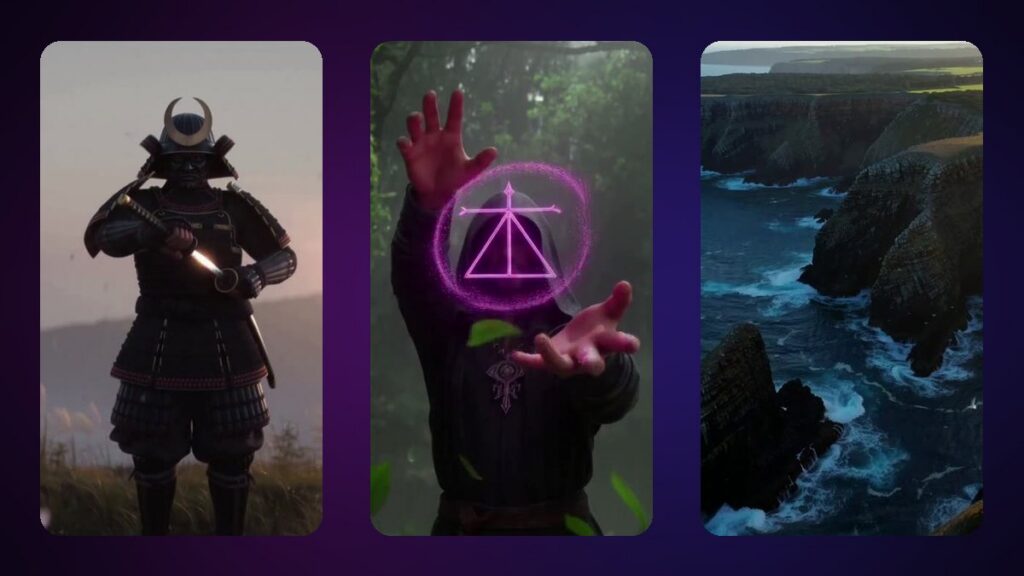
AI character swap puts a new character in place of a person in a video — body, clothes and all — while the scene, the motion, the camera and the sound stay. On iSamurai you do it in ReImagine from one picture of the new character; for photos, Imagine has its own Character Swap. Updated November 2026.
How to replace a person in a video, step by step
- Upload the video in ReImagine and pick the part to change. Parts are 2 to 10 seconds; you edit up to 10 seconds at a time on Kohai, 30 on Ninja, 1 minute on Ronin and 2 minutes on Samurai.
- Add one picture of the new character — clear and full-body, ideally on a plain background. A real person, a cartoon, a mascot, an animal or an anime character all work; a character sheet or a few angles give the closest match.
- Point at the person to replace. Only that person changes; everyone else in the shot stays.
- Process and compare. Each result is kept as a version, so you can try another picture and keep the best one. The motion, the camera and the sound stay.
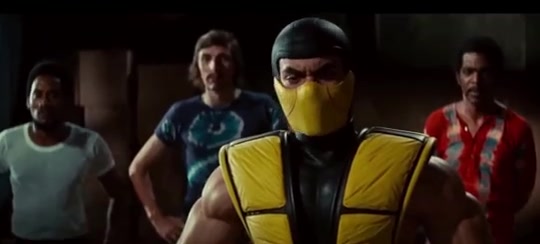
Character swap in a photo
In Imagine, Character Swap keeps the background, the light and the pose of photo 1 and puts in the whole character from photo 2. It costs 12 credits and works on every plan, including Free.
Tips for a clean result
- Show the whole character in the picture — cropped legs or arms leave the AI guessing.
- Match the body type and the outfit length to the person you replace for the most natural motion.
- Keep fast, crowded moments in short parts of 3–5 seconds.
- For a precise look, edit one frame yourself with Edit this frame and let the video follow it.
What it costs
ReImagine costs 6 credits per second (10 in HD on Ronin and Samurai), on the paid plans, plus 20 credits per reference clip if you add one. A 10-second part with one character picture costs 60 credits. See every plan on the pricing page.
FAQ
Can I try character swap for free?
In photos, yes — Imagine’s Character Swap works on the Free plan. In video, ReImagine starts on Kohai ($9.90/month).
Can I make a still picture move instead?
Yes: put the character into any video with ReImagine and it performs that video’s moves, or turn the picture into a new video with sound in VideoGenJutsu.
Character swap, head swap or face swap?
A face swap changes the face, a head swap the whole head with the hair, and a character swap the whole person.
More: the AI character swap page, the full guide on how to edit a video with AI, and all guides.