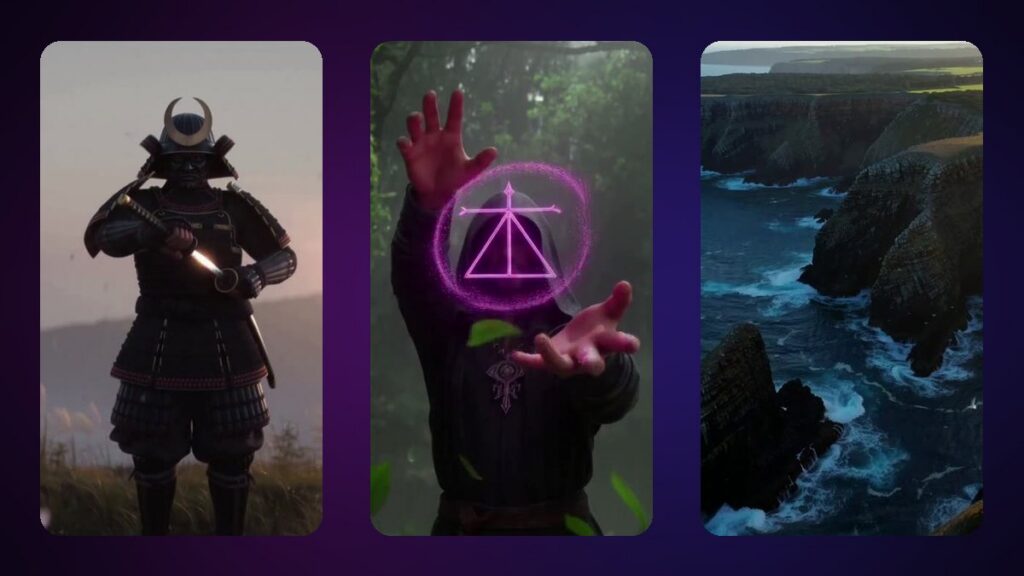
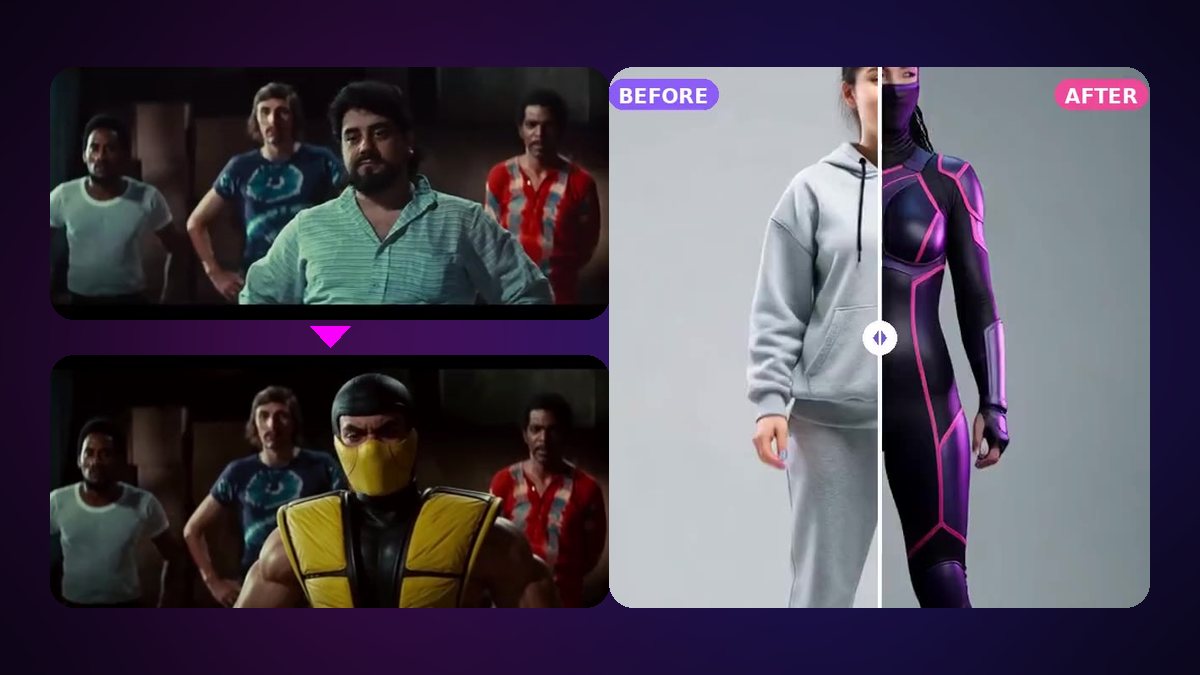
Editing a video with AI no longer means filters and cuts. You can now take a clip you already have and change what is in it — put a new character in place of a person, swap a head, change the outfit, the background or the weather — while the motion, the camera and the sound stay exactly as they were. This guide shows how to do it with ReImagine, iSamurai’s AI video editor, step by step, with real prices and tips for a clean result.
What you can change in a video with AI
ReImagine works “video to video”: it reads your clip, keeps its movement and timing, and redraws only what you ask for. The most common edits are:
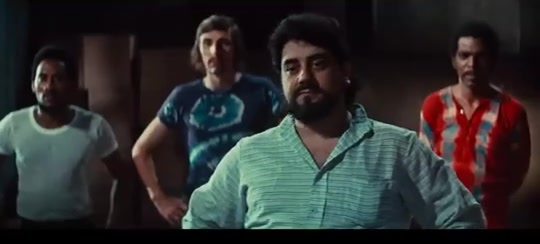
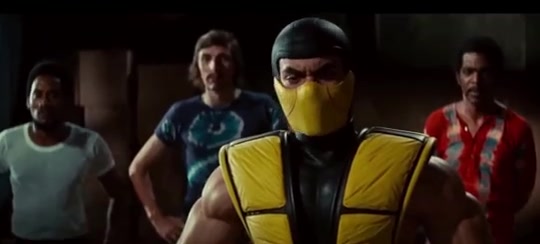
- Replace a person — a new character does exactly what the original did (AI character swap).
- Swap a head — face, hair and head shape, while the body and clothes stay (AI head swap).
- Change an outfit or a costume — same person, new clothes.
- Change the scene — a new background, a new place, a different time of day or weather.
- Change an object — a car, a prop, a sign, a logo.
If you only need to change a face, the dedicated AI face swap is faster and cheaper. ReImagine is for everything bigger than a face.
How to edit a video with AI, step by step
- Upload your video. Open ReImagine and add a clip from your phone or computer. Uploads go up to 200 MB on Kohai and Ninja, 500 MB on Ronin and 1 GB on Samurai.
- Pick the part to change. The video is cut into parts of 2 to 10 seconds. You can edit up to 10 seconds at a time on Kohai, 30 seconds on Ninja, 1 minute on Ronin and 2 minutes on Samurai.
- Show the change. For each part, add a picture, a short clip, a few words or an edited frame (see the next section). The AI prompt enhancer can turn three words into a detailed description.
- Check the price and press Process. The exact credit cost appears before you start, and a failed job gives its credits back.
- Compare versions. Every result of a part is kept as a version, so you can try another picture or prompt and keep the best one.
- Join and download. ReImagine stitches the parts back together with the original sound.
Four ways to show the change
The clearer the instruction, the better the result. You can combine these in the same part:
- A picture — up to 4 reference pictures: the new character, an outfit, a place. A character sheet or several angles of the same character give the closest match.
- A short clip — up to 2 reference clips of 1 to 4.5 seconds (1 in HD), useful for a way of moving or a look that is hard to describe.
- A few words — “make it snow”, “turn the jacket red”, “night city behind him”.
- An edited frame — choose Edit this frame, change that frame in the built-in image editor (with Imagine’s tools such as Head Swap), and the frame becomes a keyframe the whole part follows.
Tips for a clean, believable result
- Start with a clear clip. Good light and a visible subject help more than resolution.
- Keep parts short where a lot happens. A fast turn or a jump is easier to follow in a 3–5 second part.
- Match the angle. A reference picture that faces the camera the way your subject does blends best.
- Use a keyframe for precise looks. When words are not enough, edit one frame yourself and let the video follow it.
- Render close-ups in HD. On Ronin and Samurai, HD gives finer hair, skin and fabric.
What it costs
ReImagine is billed by the second: 6 credits per second (10 in HD), plus 20 credits per reference clip (30 in HD) and 2 credits per part to join the final video. A 10-second part with a reference picture costs 60 credits.
| Plan | Edit at a time | HD | Credits / month |
|---|---|---|---|
| Kohai — $9.90 | 10 s | — | 150 + 50 per daily login |
| Ninja — $29 | 30 s | — | 600 + 60 per daily login |
| Ronin — $49 | 1 min | ✓ | 1,500 + 100 per daily login |
| Samurai — $79 | 2 min | ✓ | 4,000 + 200 per daily login |
Yearly billing gives 12 months for the price of 9. All plans are on the pricing page.
FAQ
Can I edit a video with AI for free?
ReImagine needs a paid plan (from Kohai, $9.90/month). A free account can still make pictures in Imagine and 1-second test videos in VideoGenJutsu.
Does the edited video keep the original sound?
Yes. The motion, the camera, the timing and the sound of your clip stay; only what you ask for changes.
Can I replace a person with a cartoon or an anime character?
Yes. The new character can be a real person, a cartoon, a mascot, an animal or an anime character — one clear, full-body picture is enough.
How long can my video be?
Each edit covers up to 10 seconds on Kohai, 30 seconds on Ninja, 1 minute on Ronin and 2 minutes on Samurai, in parts of 2 to 10 seconds. Uploads go up to 200 MB, 500 MB or 1 GB depending on the plan.
What is the difference with a face swap?
A face swap changes only the face. ReImagine can change the whole head, the whole person, the clothes or the scene.
Ready to try? Open ReImagine, or read how to make a new AI video with sound. More step-by-step help is in the FAQ and the guides.