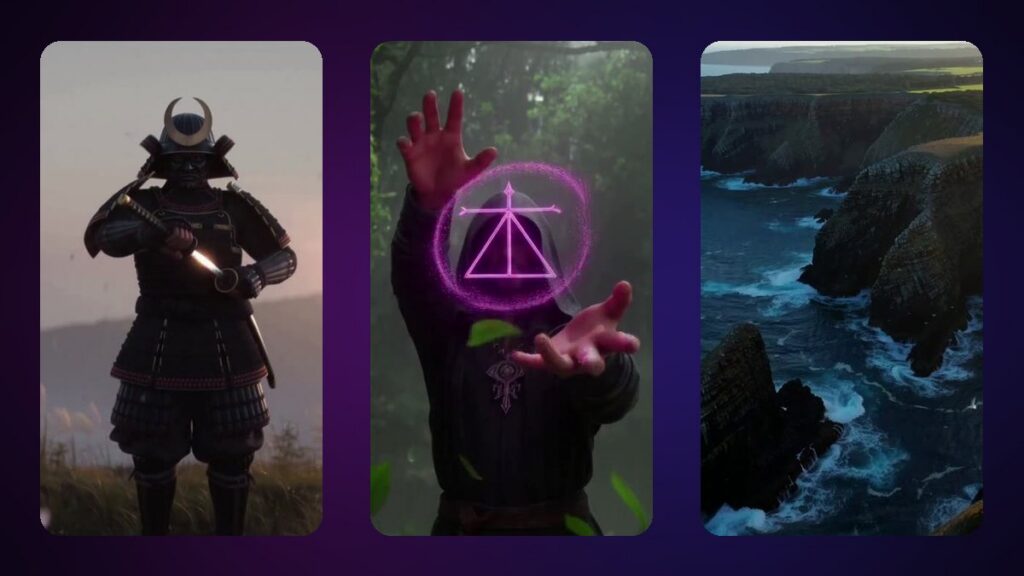
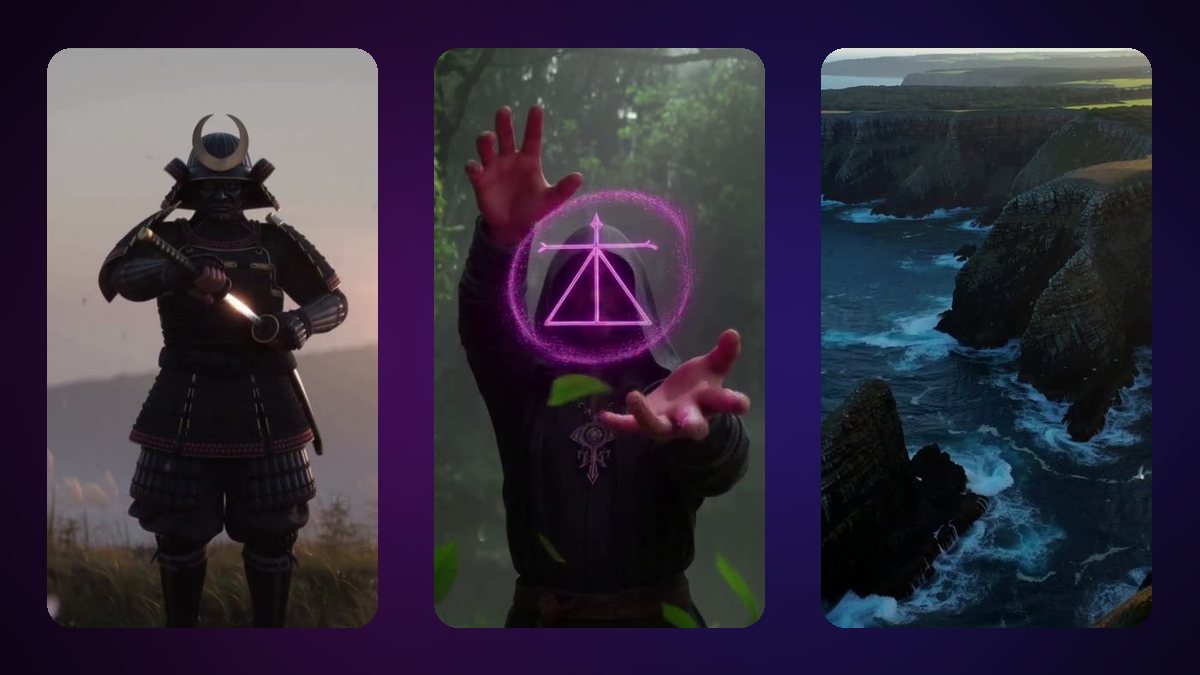
Most AI video generators give you silent clips. VideoGenJutsu makes videos with sound — voices, sound effects and music — from a sentence, a picture, a few clips or a voice. This guide shows the four ways to start, the settings that matter, how to write prompts that sound right, and exactly what each video costs.
Four ways to make an AI video with sound
- Text to video — describe the scene, the action, the camera and the sound.
- Picture to video — use a picture as the first frame, the last frame, or both, and describe what happens in between.
- References — add up to 4 pictures, 3 clips and 1 audio clip, each with a short note such as “this is the hero” or “use this rhythm”.
- Any shape — from vertical 9:16 for Reels, Shorts and TikTok to wide 16:9.
Already have a video you want to change instead? That is a job for ReImagine — see how to edit a video with AI.
How to make an AI video with sound, step by step
- Open VideoGenJutsu and pick the shape: 9:16, 1:1, 16:9 or in between.
- Write what happens. One main action, the camera move, and the sound you want to hear. On paid plans, the AI prompt enhancer can write the detailed version for you.
- Add references (optional). A first or last frame, pictures of a character or a place, short clips, or one audio clip.
- Choose length, speed and resolution. 1 to 15 seconds; Fast, Medium or High; 480p up to 1080p. The price updates as you change them.
- Generate. The credits are shown before you confirm, and a failed video gives them back.
- Download or keep going. Use the result as a reference for the next shot to build a short sequence.
Prompt tips for better sound
- Write dialogue in quotes and say who speaks: the old monk says, “The river remembers.”
- Name the ambience: rain on a tin roof, a busy market, wind over cliffs.
- Give the music a style and a tempo: slow taiko drums, upbeat synthwave, a quiet piano.
- Tie sounds to actions: “the sword clicks back into its sheath as the camera stops”.
- One idea per clip. Short, focused shots sound and look better than a crowded 15 seconds.
Example prompt: “Vertical shot. A hooded mage raises both hands in a misty forest; a glowing rune appears with a deep hum, leaves swirl, soft choir in the background, the camera slowly pushes in.”
What it costs
VideoGenJutsu is billed per second. At 480p: 4 credits per second on Fast, 5 on Medium, 6 on High. Higher resolutions multiply the price (576p ×1.25, 768p ×1.5, 1080p ×2), and longer clips cost a little more per second (8 s ×1.1, 10 s ×1.2, 15 s ×1.5). Every video costs at least 5 credits. A 5-second Fast video at 480p costs 20 credits.
| Plan | Longest video | Speeds | Up to |
|---|---|---|---|
| Free | 1-second tests | Fast | 480p |
| Kohai — $9.90 | 5 s | Fast | 480p |
| Ninja — $29 | 10 s | Fast, Medium | 576p |
| Ronin — $49 | 15 s | All, 2 at once | 768p |
| Samurai — $79 | 15 s | All, 3 at once | 1080p |
Compare everything on the pricing page.
FAQ
Can I make an AI video with sound for free?
Yes, as a test: a free account can make 1-second videos (Fast, 480p, one picture, at least 5 credits each). Free accounts get 10 credits plus 10 per daily login.
Can I turn a photo into a video?
Yes. Use the photo as the first frame, the last frame or a reference, and describe what happens. To make a character from a photo perform the moves of an existing video, use ReImagine instead.
Can the characters talk?
Yes. Write the line in quotes and say who speaks; VideoGenJutsu generates the voice with the picture.
Can I add my own audio?
You can add one audio clip as a reference — for a voice, a rhythm or a sound — with a short note on how to use it.
Which tool should I use: VideoGenJutsu, ReImagine or Imagine?
VideoGenJutsu makes new videos, ReImagine changes a video you already have, and Imagine makes and edits pictures — handy to prepare a first frame. Face, head and character swaps are explained on the face swap, head swap and character swap pages.
Ready? Open VideoGenJutsu and start with a free 1-second test. More answers are in the FAQ and the guides.