
Head swap vs face swap: why hair changes everything
An AI head swap replaces the entire head in a video — face, hair, hairline, ears, jawline and head shape — not just the oval between the eyebrows and the chin. That distinction is the whole reason head swap video tools exist: a classic face swap pastes a new face onto the original head, which works brilliantly when the two people have similar hair and build, and falls apart when they don’t.
Think about what a face alone can’t carry. If the person in your video has short dark hair and your source has long blonde curls, a face swap gives you the new face under the old haircut — instantly recognisable as an edit. Same problem with beards, fringes, bald heads, distinctive jawlines or a rounder skull. A face and hair swap solves this by rebuilding the head as a whole: the new person’s hair moves in the scene, their silhouette replaces the original silhouette, and the neckline is blended so the join is invisible.
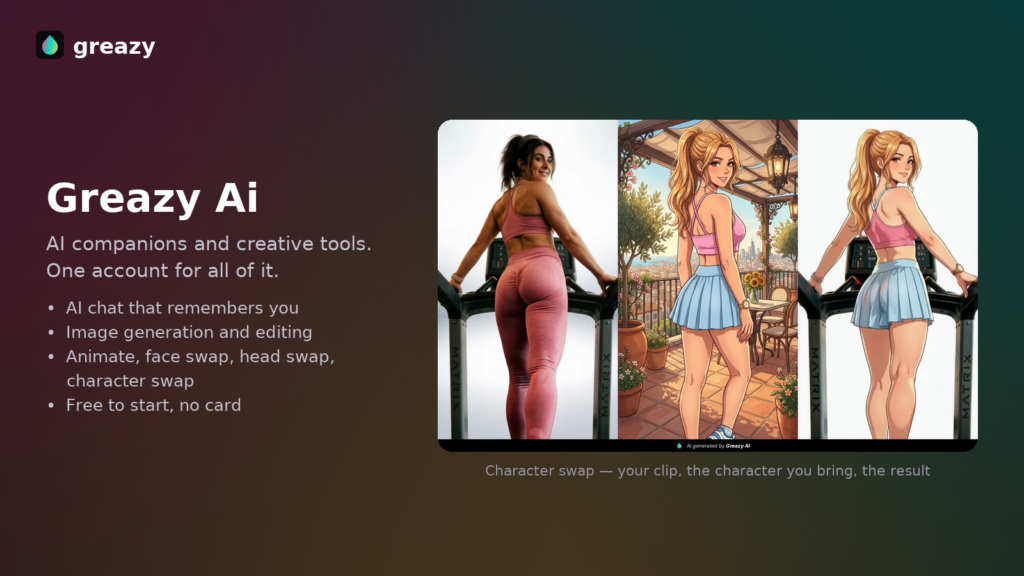
It sits in the middle of the swap family: more than a face swap, less than a full character swap (which replaces the entire person, body and clothes included). Body, outfit, background, camera and motion all stay exactly as filmed — only the head changes.
When a head swap is the right tool
- The hair is different. Different length, colour, texture or hairline between source and target — the number one reason to swap the head instead of the face.
- The head shape is different. Wider jaw, longer face, different proportions. A face swap inherits the original skull; a head swap doesn’t.
- Facial hair. Beards and moustaches live mostly outside the face-swap region. Head swap carries them over cleanly.
- You want the person to be unrecognisable. A face swap can leave enough of the original silhouette to identify someone. A head swap removes that.
- Keep the body and wardrobe. If the outfit and body language in the video are exactly what you want, head swap changes the identity without touching them — where a character swap would rebuild everything.
How to head swap a video, step by step
Here’s the full workflow to swap a head in a video with iSamurai — no editing skills needed:
- Upload your video. Any clip where the head you want to replace is clearly visible. Front-facing and three-quarter shots are the easiest; start with a short clip while you learn what works.
- Pick the person. The tool detects everyone in the clip on a reference frame. Click the head to replace — in group shots only your selection changes, everyone else stays untouched.
- Upload the new head. One clear photo of the person (or character) whose head you want in the video. The head and hair should be fully visible — no crops through the hair, no hands on the face.
- Optionally match the pose. If the photo’s head angle is far from the video’s, use pose matching to line your photo up on the exact video frame so the tool starts from the right position.
- Run a frame preview. For 2 credits, render one finished frame and inspect it: hairline, skin tone at the neck, lighting direction. Iterate here — it’s the cheap part.
- Generate the full video. Reuse the seed from the preview you liked so the final render reproduces exactly that look across the whole clip, then download from your gallery.
Pose matching for tricky angles
Heads are unforgiving: everyone notices when a hairline sits wrong or a jaw is a few degrees off. The main cause is an angle mismatch between your source photo and the video — a straight-on portrait forced onto a head seen from the side makes the tool guess what the hair and profile look like from an angle it was never shown.
Pose matching lets you fix that manually. Scrub the video’s timeline to a representative frame, then position, scale and rotate your photo directly over the head in that frame until they line up. Those few seconds of alignment anchor the swap to the real geometry of the shot, and the difference is visible immediately in the preview — especially on tilted heads, profiles and clips where the person looks away from camera.
Frame preview: 2 credits before you commit
Before rendering the whole clip, run a frame preview: one finished frame for 2 credits, rendered exactly the way the full video will be. It’s the fastest feedback loop in the tool — check that the hair reads correctly, the skin tones blend at the neck, and the lighting matches the scene. If something’s off, swap the photo or adjust the pose match and preview again. When a frame looks right, keep its seed and use the same seed for the full render: seeds make results reproducible, so the video you get matches the frame you approved instead of being a new random variation.
Quality tips for a seamless head swap
- Show all the hair. Pick a source photo where the full hairstyle is visible against a simple background — cropped or wind-blown hair makes the tool improvise.
- Match the lighting direction roughly. A photo lit from the left dropped into a scene lit from the right will always look slightly pasted. You don’t need studio precision, just avoid opposites.
- Similar angle beats higher resolution. A modest photo at the right head angle outperforms a perfect portrait at the wrong one — and pose matching closes the remaining gap.
- Watch the neckline in the preview. It’s where a head swap succeeds or fails. If the join looks off at frame one, fix it before rendering sixty seconds of it.
- Use several reference photos when identity matters. Multi-reference (Samurai plan) lets you add photos from different angles so the head stays consistent as it turns.
- Start short. Nail a 5-second clip before committing credits to a long one.
Use cases
Creators use head swaps to run a consistent on-screen identity without filming themselves — one good portrait becomes a presenter in any footage, a step up from the face-only approach used for classic face swap content. Privacy-conscious publishers swap heads to anonymise people in footage while keeping the scene natural. Fandom and meme editors put a character’s whole head — hair and all — into live-action clips where a face swap would give the game away. And anyone with great footage of the wrong person can rescue the shot instead of refilming it. If you’re animating a character from scratch rather than editing filmed footage, look at motion transfer instead.
Length limits, plans and credits
Head swap requires a paid plan — it starts on Kohai at $9.90/month. Maximum clip length is set by your plan: Kohai processes up to 10 seconds per video, Ninja 15, Ronin 30 and Samurai 60. Free accounts can instead test the sibling Character Swap on 1-second clips before upgrading. Frame previews are 2 credits everywhere. Multi-reference photos and the high-quality rendering mode are exclusive to Samurai. Compare plans on the pricing page.
FAQ
What’s the difference between a head swap and a face swap?
A face swap replaces only the facial region and keeps the original hair and head shape. A head swap replaces the entire head — face, hair, hairline, ears and skull shape — and blends it at the neck. Use head swap whenever the hair or head shape differs between the two people.
Does it swap the hair too?
Yes — hair is the main reason to choose a head swap. The new person’s hairstyle, hairline and head silhouette replace the original ones and move naturally with the scene.
What source photo should I upload?
A sharp, evenly lit photo where the whole head and hairstyle are visible, ideally at a similar angle to the video. Avoid crops through the hair, hands near the face, heavy filters and extreme expressions.
Can I check the result before rendering the whole clip?
Yes. A frame preview renders a single finished frame for 2 credits. Iterate on previews until the hairline, blend and lighting look right, then reuse that preview’s seed for the full render to reproduce the same result.
How long can the video be?
Head swap requires a paid plan: up to 10 seconds on Kohai, 15 on Ninja, 30 on Ronin and 60 on Samurai. Free accounts can test the sibling Character Swap on 1-second clips instead. Longer projects can be processed in segments and edited together.
Can I use more than one photo of the same person?
Yes — multi-reference accepts several photos from different angles, which keeps the head consistent as it turns in the video. Multi-reference and high-quality rendering are Samurai-only features.
Does the body or background change?
No. Body, clothing, background, camera movement and motion stay exactly as filmed — only the head is replaced. If you want the whole person changed, that’s a character swap.
Try it
Pick a clip, upload one good photo and preview a frame for 2 credits — you’ll know in a minute whether the swap works. Head swap starts on the Kohai plan at $9.90/month; open iSamurai to run your first head swap, or create a free account and test the sibling Character Swap on a 1-second clip first.