Generation and editing have merged
For years “AI image generator” and “AI image editor” were two different products. You went to one tool to turn a text prompt into a picture, and a completely different one to retouch a photo, remove an object or fix an old scan. That split no longer makes sense. The same diffusion models that generate an image from scratch can also rebuild part of an existing one, blend several pictures together, or restyle a photo on command.
This guide walks through the five things a modern AI image generator and editor should do — generate, inpaint, compose, restyle and restore — what each one is actually good for, and how to tell a capable tool from a thin wrapper. Everything below is shown with real output from iSamurai Imagine.
1. Generate images from a text prompt
Text-to-image is the headline feature: you describe a scene and the AI image generator renders it in seconds. The part that separates a good generator from a toy is control. A real one lets you steer the result with a negative prompt (what to avoid), pick an aspect ratio so the composition fits where you’ll use it, and render several variations at once so you can pick the strongest frame instead of regenerating blindly.
Prompt specifically. “A cat” gives you a generic cat; “a ginger cat sleeping on a windowsill in warm afternoon light, shallow depth of field, photoreal” gives you a usable image. Subject, setting, lighting and style are the four levers that matter most.
2. AI inpainting: edit one region, keep the rest
Inpainting — also called region editing — is where AI editing gets genuinely useful. You paint a mask over a specific area, describe the change, and only that region is regenerated. Everything outside your selection stays pixel-identical. This is how you remove an object from a photo, replace a background, or add something new without the AI redrawing the whole image and changing details you wanted to keep.
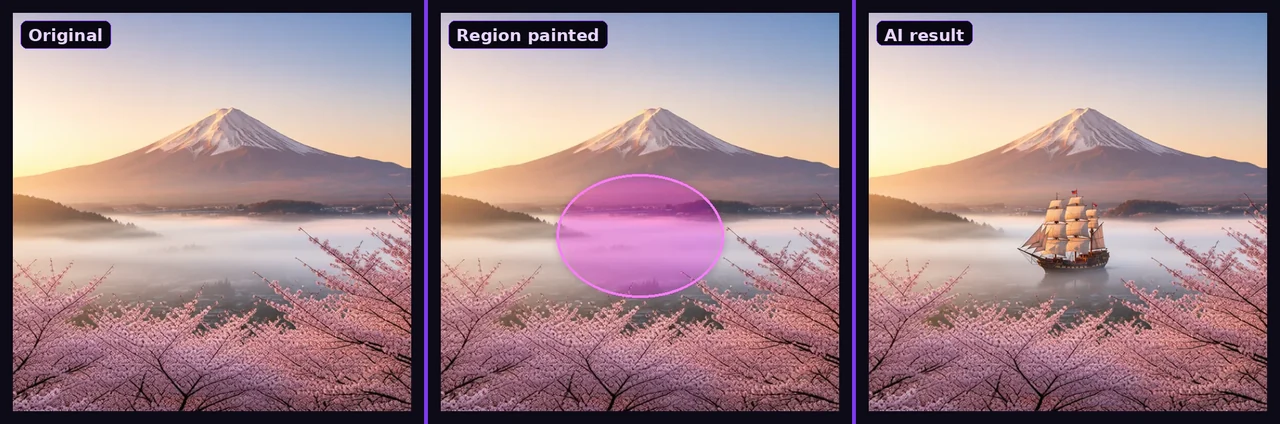
The test of a real inpainting engine is the seam. Cheap tools regenerate a rectangle and leave a visible edge or a colour shift. A good one matches lighting and grain at the mask boundary so the edit is invisible. If you mostly want to repair or clean up existing pictures rather than invent new ones, our dedicated AI image restorer and enhancer is built around exactly this.
3. Edit with multiple reference images
Single-image editing has a ceiling: sometimes the thing you want to add lives in another picture. Multi-image reference editing lets you give the AI a subject plus one or more reference images and describe how to combine them — “put the glasses from image 1 on the person in image 2.” It’s one operation, and it’s what powers virtual try-on, product placement and style transfer.
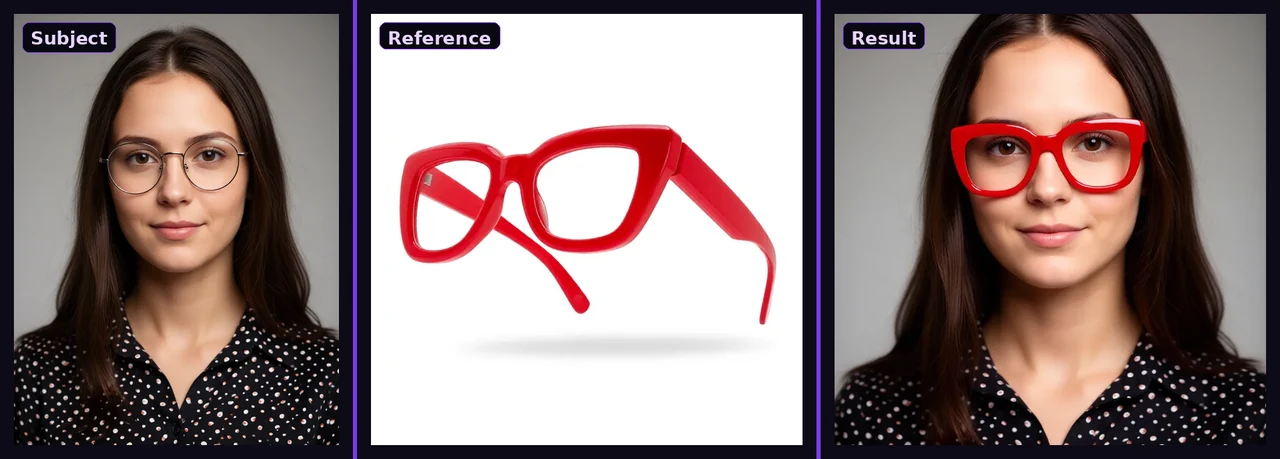
The hard part here is identity. A weak model swaps the object but quietly changes the face, the pose or the colour temperature. A strong one keeps the subject recognisable and only borrows what you asked for from the reference.
4. Restyle, recolour and convert any photo
Instruction-style editing covers everything you’d describe in a sentence: turn a photo black and white, repaint it as a cartoon, change the season, or recolour a product. You type the instruction and the AI photo editor applies it while keeping the composition faithful to the source.
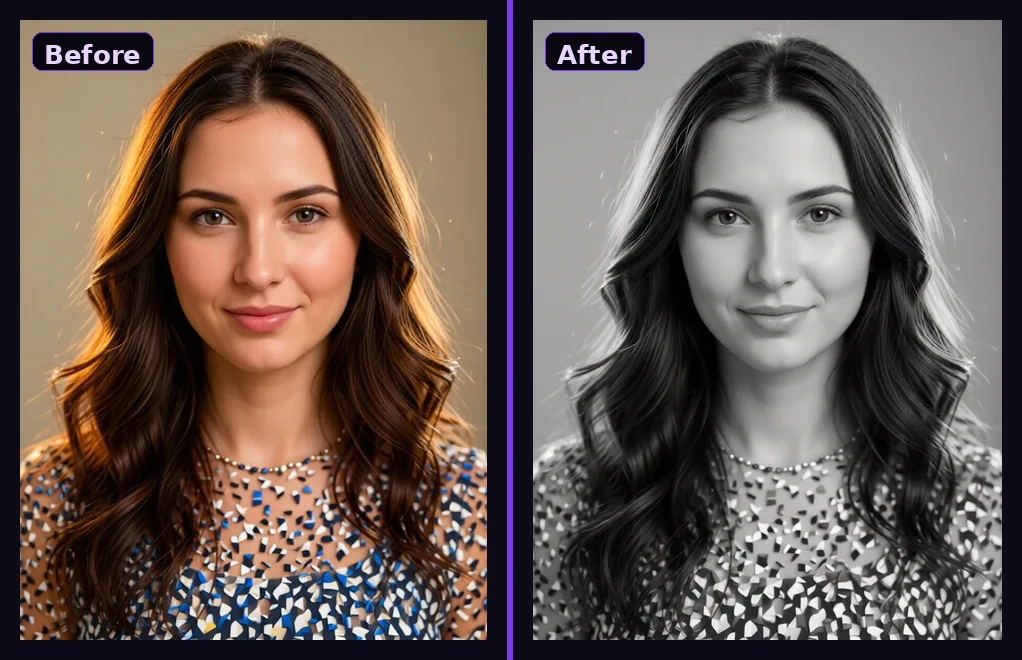
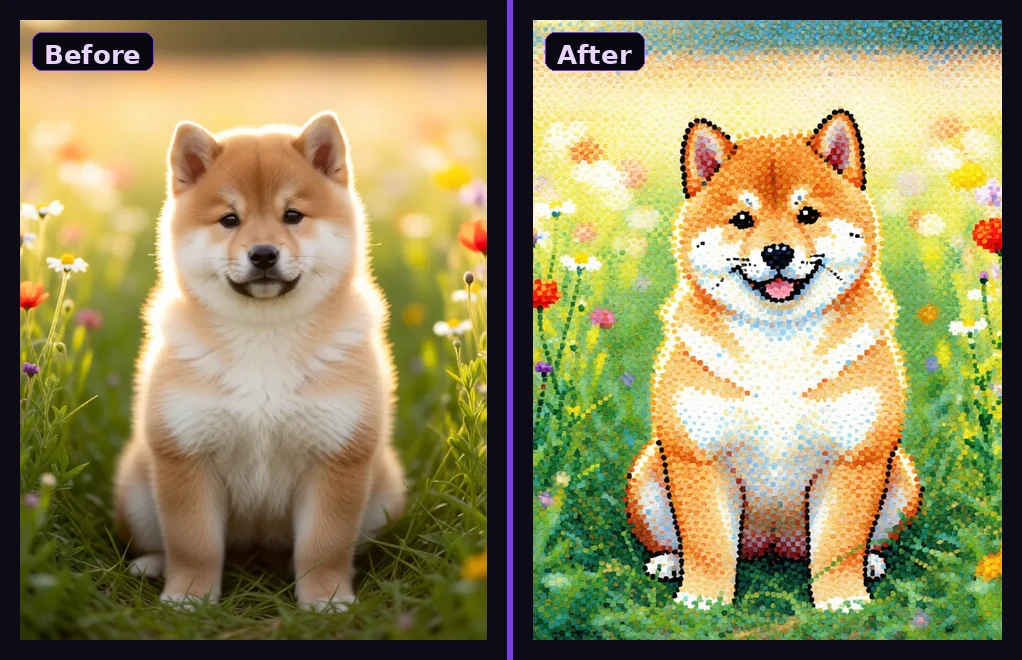
Style transfer is the most fun and the easiest to get wrong: push it too hard and the subject dissolves into texture. The goal is a restyle that a friend would still recognise.
5. Restore and enhance old photos
The same editing stack restores old, faded or damaged photos: repair scratches and tears, sharpen a blurry scan, enhance faces, and optionally recolour a black-and-white original. Because it’s prompt-driven, you control how far it goes — a light clean-up or a full reconstruction.
We’ve written two deeper walkthroughs on this: restoring, enhancing and upscaling photos with AI and fixing blurry pictures and reviving old images. Both use the same engine described here.
How credits and quality work
A fair AI image tool prices each action at a fixed, visible cost rather than a vague monthly “tokens” pool. In Imagine, every action shows its exact credit cost on the Generate button before you commit, failed generations are refunded automatically, and you choose between a fast pass and a high-quality pass per job. A free account starts with credits so you can test the full workflow — generate, edit and region-edit — before paying. See the current plans and pricing for the details.
How to choose an AI image generator
Most “AI image generator” sites wrap the same open model with a different logo. Four questions separate a real tool from a wrapper:
- Does it edit, not just generate? Inpainting and multi-image editing are far harder to ship than text-to-image. Their presence is the clearest quality signal.
- Are the seams clean? Run one inpaint and zoom into the mask boundary. Edges and colour shifts give away a weak engine.
- Is pricing honest? Fixed per-action cost shown up front, with refunds on failure, beats an opaque credit drain.
- Is there a real free tier? Not a 3-image trial — enough to actually evaluate generate, edit and inpaint.
If you also work with video, the same account covers AI face swap and AI slow motion — so generation, editing and motion live in one place.
FAQ
Is there a free AI image generator with no watermark?
Yes. iSamurai Imagine is free to start — you get credits on a free account, no card required, and there’s no watermark on your images. Paid plans add high-quality output, multi-image editing and priority processing.
What’s the difference between AI inpainting and a normal edit?
A normal edit can change the whole image. Inpainting regenerates only the region you paint a mask over and leaves everything else pixel-identical — which is how you remove an object or replace a background cleanly.
Can I remove an object or replace the background?
Yes. Paint a mask over the object or background, describe the change, and only that area is rebuilt. The rest of the photo stays untouched.
Can I combine two images into one?
Yes — multi-image reference editing takes a subject plus one or more reference images and merges them in a single operation, keeping identity and lighting consistent. It’s used for virtual try-on, product placement and style transfer.
Can it restore old or damaged photos?
Yes. The same editor repairs scratches and tears, sharpens blurry scans, enhances faces and can recolour black-and-white originals from a simple instruction.
What image formats can I upload?
JPG, PNG, WebP and HEIC (iPhone) all work. Sideways phone photos are auto-rotated and transparency is handled cleanly.
Try it
Generate from a prompt, paint a region to edit it, combine references or restore an old photo — all in one studio. Open iSamurai Imagine free and create your first image.